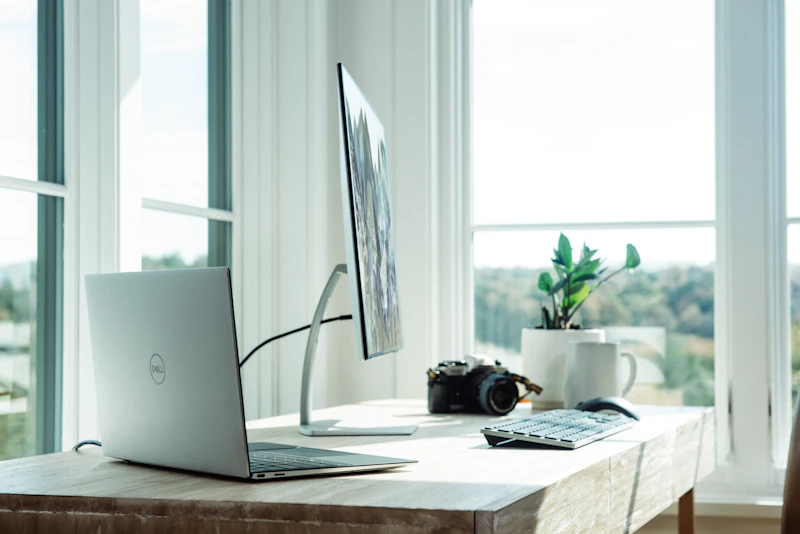
Multi-Monitor Setup Guide: Boost Productivity With a Second Screen
Research shows a second monitor increases productivity by 20-30%. Here is how to choose, position, and configure multiple monitors for maximum workflow efficiency.
BestElectronicsReviewed.com is a participant in the Amazon Services LLC Associates Program. We may earn a commission from qualifying purchases made through links on this page, at no extra cost to you.
Multiple monitors reduce the time spent switching between windows, provide persistent visibility into reference material and communication, and create dedicated zones for different types of work. Research from the University of Utah found that dual monitors increased productivity by 20-30% for tasks involving multiple applications.
How Many Monitors Do You Need
Two monitors: The sweet spot for most knowledge workers. Your primary monitor displays your active work (writing, coding, designing). Your secondary monitor displays reference material, communication (email, Slack), and monitoring dashboards. The productivity gain from one to two monitors is significant.
Three monitors: Useful for specific workflows — trading, video production, software development with multiple tool windows. The productivity gain from two to three is smaller than from one to two, and the desk space and GPU requirements increase significantly.
Ultrawide as a single monitor: A 34-40 inch ultrawide provides the screen real estate of two monitors without the bezel gap in the center. Some people prefer this approach for its cleaner desk aesthetic and seamless window arrangement.
Choosing Your Second Monitor
Match the resolution and approximate size of your primary monitor. Mismatched resolutions cause scaling issues, and significantly different sizes create jarring visual transitions.
For a laptop user, a portable USB-C monitor (15-17 inches) adds a second screen without permanent desk commitment. Travel-friendly models weigh 2-3 pounds and connect with a single USB-C cable.
For a desktop user, a second 27-inch 4K monitor identical to your primary creates the most comfortable dual-monitor experience. Matching monitors ensure consistent color, brightness, and text rendering.
Positioning
Side by side: Place monitors at the same height with the seam between them directly in front of you. Angle each monitor slightly inward so the screen faces you directly. This works best when you use both monitors equally.
Primary centered, secondary offset: If you have a clear primary monitor, center it directly in front of you and place the secondary to the side at a slight angle. This works best when 70%+ of your work happens on one screen.
Stacked: Place the secondary monitor directly above the primary using a VESA mount arm. This saves desk width and works well when the secondary monitor is used for monitoring (dashboards, chat, video calls) rather than active work.
Configuration Tips
Display arrangement: In your OS display settings, arrange the virtual monitors to match their physical position. Drag the displays in settings so the cursor moves naturally between screens.
Taskbar/dock: On Windows, extend the taskbar to all monitors. On macOS, the dock appears on whichever screen is active.
Window management: Install a window manager for efficient window arrangement. Rectangle (Mac, free) and FancyZones (Windows, part of PowerToys) let you snap windows to predefined zones with keyboard shortcuts.
Consistent brightness and color: Calibrate both monitors to the same brightness and color temperature. Mismatched screens cause eye fatigue as your eyes constantly adjust between different brightness levels.
The Ergonomic Consideration
Multiple monitors increase your neck rotation as you look between screens. Minimize this by keeping your primary work centered and using the secondary monitor for glanceable information rather than active reading.
A dual monitor arm raises both monitors to the correct height and provides infinite positioning adjustment. Gas spring arms make repositioning effortless.
Workflow Patterns
Writer: Primary screen for the document. Secondary screen for research, notes, and reference material.
Developer: Primary screen for code editor. Secondary screen for terminal, browser, and documentation.
Designer: Primary screen for the design canvas. Secondary screen for assets, reference images, and communication.
Manager: Primary screen for active work. Secondary screen for email, calendar, and team chat.
As an Amazon Associate, BestElectronicsReviewed earns from qualifying purchases.
Recommended Products
Top picks from our buying guides
Related Articles
eSIM for International Travel: Complete Setup Guide for iPhone and Android
Skip the SIM card shops at the airport. An eSIM gives you instant data in 190+ countries at a fraction of roaming costs. Here is how to set one up.
How-ToHome Network Wiring: Run Ethernet Through Your House Like a Pro
WiFi is convenient but ethernet is faster and more reliable. Here is how to run ethernet cables through your home without destroying your walls.
How-ToHow to Light a Video Call So You Look Professional
Lighting is the difference between looking washed out and looking polished on video calls. Here's a simple setup that takes 5 minutes and costs under $50.