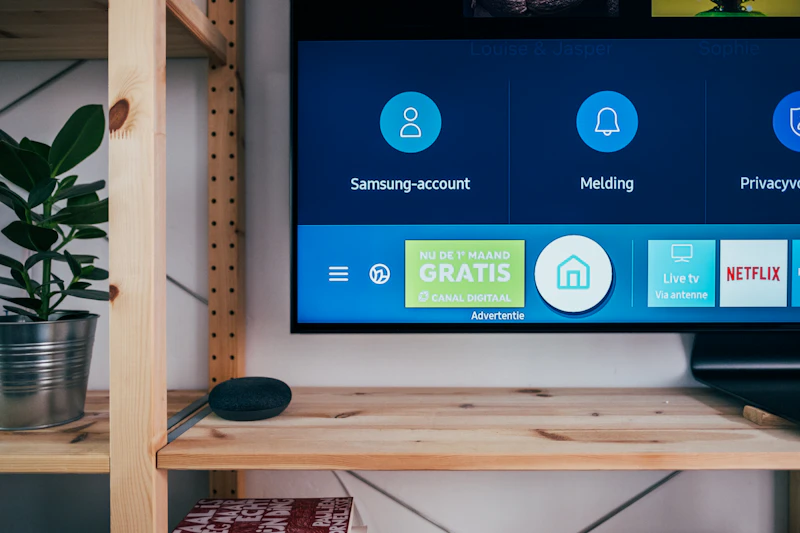
How to Optimize Your TV for Console Gaming
Your TV's default settings are optimized for movies, not gaming. Here is how to configure every major TV brand for the best console gaming experience.
BestElectronicsReviewed.com is a participant in the Amazon Services LLC Associates Program. We may earn a commission from qualifying purchases made through links on this page, at no extra cost to you.
Every TV ships with picture settings tuned for showroom floors and movie watching — heavy processing that makes nature documentaries look stunning but adds significant input lag for gaming. Optimizing your TV for console gaming takes about five minutes per brand and makes a dramatic difference in responsiveness. Here is a brand-by-brand guide.
Universal Settings (All TV Brands)
Before diving into brand-specific settings, these changes apply to every TV on the market.
Enable Game Mode. Every modern TV has this option, and it is the single most impactful change you can make. Game Mode disables image processing that adds latency — typically reducing input lag from 40-80ms down to 8-15ms. The image may look slightly different (less motion smoothing, less noise reduction), but the responsiveness improvement is enormous.
Disable motion smoothing. Also called TruMotion (LG), Motion Plus (Samsung), MotionFlow (Sony), or ClearAction (Vizio). This feature interpolates extra frames between real frames to make motion look smoother. For movies, it creates the "soap opera effect." For gaming, it adds 20-40ms of processing delay and can cause visual artifacts. Turn it off completely.
Set the correct HDMI input. If your TV has HDMI 2.1 ports, use one of them for your console. Not all ports support 2.1 — check your manual. An HDMI 2.1 cable rated for 48 Gbps ensures you get full 4K 120Hz capability.
Samsung TVs
Samsung TVs have Game Mode under Settings, General, External Device Manager, Game Mode. Set it to "On" rather than "Auto" to ensure it always activates for your console.
Within Game Mode, access the Game Bar overlay by pressing and holding the Play/Pause button. Here you can enable VRR (Variable Refresh Rate), which synchronizes the TV's refresh rate with your console's frame output to eliminate tearing. Set Motion Plus to "Off" and enable Game Motion Plus only if you want black frame insertion, which reduces motion blur at the cost of brightness.
For HDR games, switch to HDTV mode under Picture Mode with Game Mode active. Set brightness to 50, contrast to 45, and enable Local Dimming at its highest setting for the best HDR experience. Samsung's local dimming is excellent on their QD-OLED and Mini LED models.
LG TVs
LG TVs auto-detect consoles and switch to Game Mode on supported HDMI ports, but verify manually. Navigate to Settings, Picture, Additional Settings, and ensure Instant Game Response is enabled. This is LG's term for auto-Game-Mode plus VRR.
For LG OLED TVs, enable OLED Motion Pro at "Off" or "Low" — higher settings reduce motion blur but dim the image significantly. Set AI Picture Pro to "Off" as it adds processing latency. Under HDMI Ultra HD Deep Color, make sure it is enabled for your console's HDMI port, which unlocks 4K 120Hz and Dolby Vision gaming.
LG OLEDs have the lowest input lag of any TV technology — under 10ms in Game Mode at both 60Hz and 120Hz. They are widely considered the best TVs for gaming.
Sony TVs
Sony TVs handle Game Mode through the Picture Mode setting. Select "Game" as your picture mode, which automatically disables processing that adds latency. Sony's Game Mode preserves more image processing than other brands — the picture looks slightly better but input lag is marginally higher (around 15-18ms versus 10ms on LG OLED).
Under Picture Settings, set MotionFlow to "Off" and CineMotion to "Off." Enable Enhanced Format under HDMI Signal Format for your console's port to unlock 4K 120Hz. Sony's Bravia XR processors add AI-driven upscaling that works even in Game Mode, which is a nice bonus for games running below native 4K.
Calibrating HDR
HDR calibration is game-specific but there are universal principles. Most games include an HDR calibration screen at startup. Set your TV's backlight or OLED brightness to maximum when playing HDR content. Adjust the in-game HDR brightness so that the reference white square is bright but not blinding, and the shadow detail slider reveals detail in dark areas without washing out the image.
For serious calibration, a Spyder X colorimeter can calibrate your TV for accurate colors, though this matters more for content creation than gaming. Most gamers will be perfectly satisfied with the default color settings within Game Mode.
Quick Wins
Turn off ambient light sensors — they dynamically adjust brightness, which is distracting during gaming. Disable energy-saving modes, which throttle brightness and processing power. Set your console's output to match your TV's native resolution and refresh rate. Enable 4K output at 120Hz if both your TV and console support it, even if specific games only run at 60fps — VRR handles the synchronization automatically.
These optimizations take minutes but the difference in gaming responsiveness is genuinely transformative. Your console is capable of delivering a great experience — your TV just needs to get out of the way.
As an Amazon Associate, BestElectronicsReviewed earns from qualifying purchases.
Recommended Products
Top picks from our buying guides
Related Articles
Updated: How to Organize Your Desk Setup for Maximum Productivity (Spring 2026)
Updated: How to Organize Your Desk Setup for Maximum Productivity (Spring 2026) — expert analysis and tested recommendations from BestElectronicsReviewed.
TipsEssential Tech for Architects and Designers
Architecture demands serious computing power for CAD and rendering, precise displays for color accuracy, and collaborative tools that bridge the studio and job site.
TipsMust-Have Tech for Interior Designers
Modern interior design blends creativity with technology. From color-accurate displays to 3D rendering tools, here's the tech that gives designers a competitive edge.