5 Free Video Editing Apps That Replace Expensive Software
You don't need a $300 software subscription to edit professional-looking videos. These free apps handle 4K editing, color grading, and effects without costing a cent.
BestElectronicsReviewed.com is a participant in the Amazon Services LLC Associates Program. We may earn a commission from qualifying purchases made through links on this page, at no extra cost to you.
Adobe Premiere Pro costs $23/month. Final Cut Pro costs $300 upfront. DaVinci Resolve Studio costs $295. If you're not earning money from video editing, spending hundreds of dollars on software is hard to justify. Fortunately, these five free video editors handle everything from basic cuts to professional color grading.
1. DaVinci Resolve (Free Version) — Best Overall
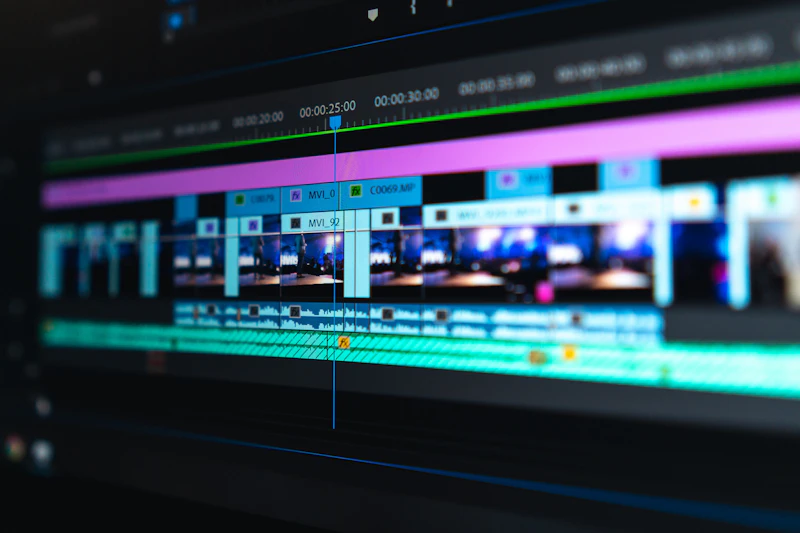
DaVinci Resolve is the most capable free video editor available by a significant margin. The free version includes the same editing timeline, color grading tools, Fairlight audio post-production suite, and visual effects engine as the $295 Studio version. The restrictions in the free version are minimal: no 8K output, no some advanced noise reduction, and no multi-GPU rendering. For 4K and below — which covers virtually all YouTube and social media content — the free version has no meaningful limitations.
The color grading tools deserve special mention. DaVinci Resolve was originally designed as professional color grading software before Blackmagic expanded it into a full editing suite. The color wheels, curves, qualifier tools, and LUT management rival or exceed what Premiere Pro and Final Cut offer. If color grading matters to your workflow, Resolve is the only free option worth considering.
Learning curve: Steep. DaVinci Resolve is a professional tool with a professional interface. Expect to spend a week learning the basics. YouTube tutorials from channels like Casey Faris and MrAlexTech cover everything you need.
System requirements: DaVinci Resolve is hardware-intensive. You need at least 16GB RAM and a dedicated GPU for smooth 4K editing. On older laptops, use proxy editing (Resolve generates lower-resolution copies for smooth editing, then exports from the full-resolution originals).
Best for: Anyone serious about video quality who's willing to invest time learning a professional tool.
2. CapCut (Desktop and Mobile) — Best for Social Media
CapCut started as a mobile editing app for TikTok and has evolved into a surprisingly capable desktop editor. The interface is dramatically simpler than DaVinci Resolve, with drag-and-drop effects, auto-captioning, background removal, and trendy transitions pre-built and ready to apply.
Auto-captioning is CapCut's killer feature. It transcribes spoken audio into animated captions with impressive accuracy, in the trendy word-by-word highlight style that dominates social media. Doing this manually takes hours; CapCut does it in seconds.
The desktop version handles 4K editing and exports without watermarks. The mobile version is equally capable for phone-shot content. Both are genuinely free with no subscription required.
Learning curve: Minimal. If you've used Instagram stories, you can learn CapCut in an afternoon.
Best for: TikTok, Instagram Reels, YouTube Shorts, and anyone who wants fast, trendy edits without learning professional software.
3. Shotcut — Best Open-Source Option
Shotcut is a free, open-source video editor available on Windows, Mac, and Linux. It supports 4K editing, hundreds of video and audio filters, keyframe animation, and multiple export formats. There are no watermarks, no feature restrictions, and no ads.
The interface isn't as polished as commercial software, but it's functional and logically organized. Shotcut handles the core editing tasks — cutting, trimming, transitions, text overlays, color correction, and audio mixing — without any of the subscription or licensing complications.
Learning curve: Moderate. The interface is quirky but not difficult. A weekend of tutorials gets you productive.
Best for: Users who want full-featured editing without any commercial ties or data collection concerns.
4. iMovie — Best for Mac and iPhone Users
If you own an Apple device, iMovie is already installed. It's the most intuitive video editor on this list, with a clean interface that makes basic editing feel effortless. Drag clips to the timeline, trim endpoints, add transitions, drop in music, and export — the entire workflow is designed for people who've never edited video before.
iMovie handles 4K editing and exports, includes a selection of professional templates and effects, and syncs projects between Mac, iPhone, and iPad via iCloud. The Cinematic Mode footage from iPhone integrates seamlessly, letting you adjust focus points after recording.
Limitations: No multi-camera editing, limited text customization, and no advanced color grading. iMovie is designed for simplicity, and it sacrifices power users' needs to maintain that simplicity.
Best for: Apple users who want to edit quickly without learning complex software.
5. Kdenlive — Best for Linux Users
Kdenlive is the most powerful free video editor on Linux and also runs well on Windows and Mac. It supports unlimited video and audio tracks, keyframe animation, dozens of effects, and titling. The interface follows the standard non-linear editing layout that professionals will find familiar.
Multi-track editing, proxy clip workflow, and extensive codec support make Kdenlive capable of handling long-form projects that simpler editors struggle with. The active open-source community means bugs get fixed and features get added regularly.
Learning curve: Moderate. Similar to learning any standard NLE (non-linear editor).
Best for: Linux users and anyone who wants a powerful, open-source editor without DaVinci Resolve's hardware demands.
Which One Should You Choose?
Start with CapCut if you edit short-form social media content. Start with iMovie if you're on Apple devices and want simplicity. Start with DaVinci Resolve if you're serious about video quality and willing to invest time learning. Store your project files on a Samsung T7 portable SSD ($80 for 1TB) for fast access and reliable backup.
As an Amazon Associate, BestElectronicsReviewed earns from qualifying purchases.
Recommended Products
Top picks from our buying guides
Related Articles
Updated: How to Organize Your Desk Setup for Maximum Productivity (Spring 2026)
Updated: How to Organize Your Desk Setup for Maximum Productivity (Spring 2026) — expert analysis and tested recommendations from BestElectronicsReviewed.
TipsEssential Tech for Architects and Designers
Architecture demands serious computing power for CAD and rendering, precise displays for color accuracy, and collaborative tools that bridge the studio and job site.
TipsMust-Have Tech for Interior Designers
Modern interior design blends creativity with technology. From color-accurate displays to 3D rendering tools, here's the tech that gives designers a competitive edge.