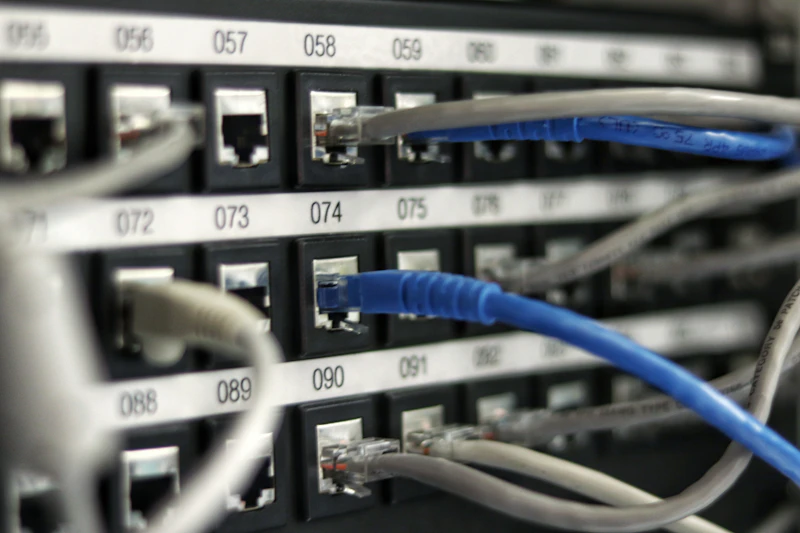
Why Your Home Internet Is Slower Than You're Paying For
You pay for 500 Mbps but your speed test shows 200 Mbps. The problem is rarely your ISP — it's usually your equipment, placement, or configuration. Here's how to fix it.
BestElectronicsReviewed.com is a participant in the Amazon Services LLC Associates Program. We may earn a commission from qualifying purchases made through links on this page, at no extra cost to you.
Internet speed complaints are universal. People pay for high-speed plans and get frustrated when their actual experience does not match. But in most cases, the ISP is delivering the advertised speed to your house — the bottleneck is somewhere inside your home. Here is a systematic approach to diagnosing and fixing the problem.
Step 1: Establish Your Baseline
Before blaming anything, run two speed tests:
Test 1: Wired Speed Test
Connect a computer directly to your modem/router with an Ethernet cable. Go to speedtest.net and run a test. This measures the speed your ISP is actually delivering.
If the wired speed matches your plan: Your ISP is doing its job. The problem is in your home network. If the wired speed is significantly below your plan: Call your ISP. The issue is on their end.
Test 2: Wireless Speed Test
From the same room as your router, run a speed test on Wi-Fi. Compare this to the wired result. The difference tells you how much speed your Wi-Fi setup is losing.
Common Problem #1: Your Router Is the Bottleneck
ISP-provided routers are typically low-end models that were already dated when your plan was installed. A router that supports WiFi 5 (802.11ac) maxes out at 866 Mbps theoretical — and real-world performance is about 50-60% of theoretical, meaning 430-520 Mbps actual. If you are paying for 500 Mbps or more, the ISP router cannot deliver full speed over Wi-Fi.
The fix: Replace the ISP router (or put it in bridge mode) and use a dedicated router. The TP-Link Archer AXE75 supports WiFi 6E with speeds up to 5,400 Mbps across three bands — far more than any consumer internet plan requires.
Common Problem #2: Router Placement
Wi-Fi signals are weakened by distance, walls, floors, and appliances. The most common placement mistake: the router is in the corner of the house (wherever the ISP installed it) instead of centrally located.
Signal loss through common obstacles:
- Drywall: 3-5 dB loss
- Brick wall: 6-10 dB loss
- Floor/ceiling: 10-15 dB loss
- Concrete: 10-20 dB loss
- Metal (filing cabinets, mirrors, refrigerators): 15-20 dB loss
Each 3 dB of loss halves the signal strength. Two walls between you and the router can reduce your speed by 75%.
The fix: Move the router to the center of your home, elevated (on a shelf, not the floor), and away from other electronics. If you cannot move it (cable modem placement), consider a mesh system.
Common Problem #3: Wi-Fi Congestion
In apartment buildings and dense neighborhoods, dozens of Wi-Fi networks compete for the same radio channels. This causes interference and slows everyone down.
The fix:
- Use the 5 GHz band (less congested than 2.4 GHz but shorter range)
- If your router supports it, use the 6 GHz band (WiFi 6E/7) — it is essentially empty in most areas
- Use a Wi-Fi analyzer app to find the least congested channel
- Set your router to a specific channel instead of "Auto" if you identify a clear winner
Common Problem #4: Too Many Devices on Wi-Fi
Consumer routers handle 15-25 simultaneous Wi-Fi connections well. Beyond that, performance degrades. A modern home with smart bulbs, cameras, speakers, phones, laptops, TVs, and gaming consoles can easily exceed 30 devices.
The fix:
- Wire everything that stays in one place: TV, gaming console, desktop, NAS
- Use a mesh system designed for high device counts
- The eero Pro 6E (3-pack) handles 100+ devices and covers up to 6,000 sq ft
- Consider putting IoT devices on a guest network to reduce congestion on your main network
Common Problem #5: Your Modem Is Outdated
If you have cable internet and rent the ISP's modem, it might be a DOCSIS 3.0 model that caps out at 343 Mbps — regardless of what you pay for. DOCSIS 3.1 is required for plans above 300 Mbps.
The fix: Buy your own modem. The Motorola MB8611 supports DOCSIS 3.1 and handles speeds up to 2.5 Gbps. It pays for itself in 6-8 months of eliminated rental fees ($10-15/month).
Common Problem #6: DNS Configuration
Your ISP's default DNS servers can be slow. Switching to a faster DNS provider reduces the time it takes to resolve website addresses, making browsing feel snappier.
The fix: Change your router's DNS settings to:
- Cloudflare: 1.1.1.1 (fastest, privacy-focused)
- Google: 8.8.8.8 (reliable, fast)
- Quad9: 9.9.9.9 (security-focused, blocks malicious domains)
This does not increase your download speed, but it reduces the latency of loading web pages.
Common Problem #7: Your Ethernet Cable
If your wired speed test is slow, check the cable. Cat5 cables (not Cat5e) cap out at 100 Mbps. Cat5e supports 1 Gbps. Cat6 supports up to 10 Gbps for shorter runs.
Look at the text printed on the jacket of your Ethernet cable. If it says "Cat5" (without the "e"), replace it. A Cat6 Ethernet cable costs a few dollars and ensures your wired connection is not the bottleneck.
The Speed You Actually Need
Before chasing maximum speed, consider what you actually need:
| Activity | Required Speed (per device) | |----------|---------------------------| | Web browsing | 5-10 Mbps | | SD video streaming | 5 Mbps | | HD video streaming | 15-25 Mbps | | 4K video streaming | 25-50 Mbps | | Video call (Zoom/Teams) | 5-15 Mbps | | Online gaming | 10-25 Mbps (latency matters more) | | Large file download | As fast as possible |
A household of 4 people simultaneously streaming 4K, gaming, and video calling needs about 200-300 Mbps total. If you are paying for a 1 Gbps plan, you are paying for speed you cannot practically use in most scenarios.
The exception: large downloads (game updates, software installs, cloud backups). These benefit directly from higher speeds. If you regularly download 50-100GB game updates, a 1 Gbps plan reduces the wait from 13 minutes (at 500 Mbps) to 7 minutes.
Read our home networking guide →
As an Amazon Associate, BestElectronicsReviewed earns from qualifying purchases.
Recommended Products
Top picks from our buying guides
Related Articles
Guide: Why USB-C Cables Are Not All the Same: A Technical Guide (Spring 2026)
Guide: Why USB-C Cables Are Not All the Same: A Technical Guide (Spring 2026) — expert analysis and tested recommendations from BestElectronicsReviewed.
Deep DiveWhy Ultrawide Monitors Are Better Than Dual Monitors
Two monitors or one ultrawide? After testing both setups extensively, the ultrawide wins for most people. Here's the detailed case.
Deep DiveWhy USB-C Cables Are Not All the Same: A Technical Guide (March 2026)
Why USB-C Cables Are Not All the Same: A Technical Guide (March 2026) — expert analysis and tested recommendations from BestElectronicsReviewed.