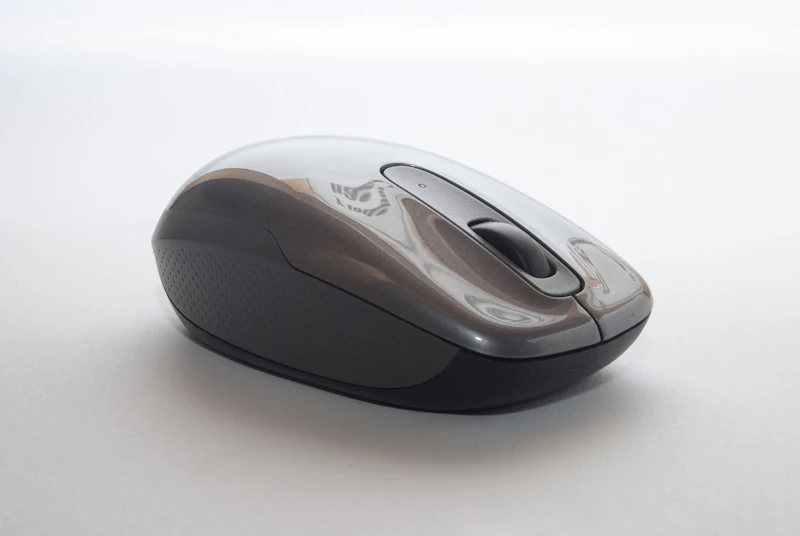
Motor Impairment Accessories: Mice, Keyboards, and Input Devices
Fine motor control challenges do not have to mean giving up on computers. These specialized input devices and settings adapt technology to your abilities.
BestElectronicsReviewed.com is a participant in the Amazon Services LLC Associates Program. We may earn a commission from qualifying purchases made through links on this page, at no extra cost to you.
Motor impairments ranging from arthritis to cerebral palsy to nerve damage can make standard mice and keyboards difficult or impossible to use. Fortunately, a wide range of adaptive input devices exists, and most operating systems include built-in adjustments that help.
Alternative Mouse Options
Trackballs eliminate the need to move your arm across a desk. The Kensington SlimBlade Pro uses a large ball that can be operated with minimal finger movement. The Logitech Ergo M575 is smaller and uses a thumb-operated ball that many users with wrist or arm limitations find easier to control.
Joystick mice replace small movements with larger, easier-to-control stick movements. The Microsoft Adaptive Mouse can be customized with different tail attachments and button toppers to match your grip strength and hand position. For users with very limited hand movement, head-tracking mice and mouth-operated joysticks provide cursor control without hand involvement.
Keyboard Adaptations
Keyguards are acrylic or metal overlays that sit above a standard keyboard with holes for each key. They prevent accidental key presses by letting you rest your hand on the guard and target specific keys through the holes. They work with most full-size keyboards and some compact models.
Expanded keyboards with larger, spaced-out keys are easier targets for users with limited precision. Compact keyboards reduce reach distance for users with limited range of motion. The right choice depends on whether your challenge is precision (go larger) or range (go smaller).
Built-In OS Accessibility
Windows, macOS, and Linux include several motor accessibility features. Sticky Keys lets you press modifier keys (Shift, Ctrl, Alt) one at a time instead of holding them simultaneously. Filter Keys ignores brief or repeated keystrokes — invaluable for users with tremors. Slow Keys adds a delay before registering a keypress, preventing accidental taps.
Mouse Keys lets you move the cursor using the number pad. Pointer precision settings let you slow down cursor speed for finer control. Dwell clicking clicks automatically when you hover over a target — no button press needed. These features are free and often sufficient without purchasing any special hardware.
Speech and Alternative Input
Voice control (covered in our separate guide) can supplement or replace manual input entirely. Combine voice dictation for text entry with a trackball or head tracker for cursor movement, and you have a complete computer input system with minimal motor demands.
Foot switches add extra inputs below the desk — use them for modifier keys, clicks, or common shortcuts. USB foot pedals are inexpensive and programmable. Some users assign the foot switch to Enter or Space, keeping their hand on the mouse full-time.
As an Amazon Associate, BestElectronicsReviewed earns from qualifying purchases.
Recommended Products
Top picks from our buying guides
Anker 20000mAh Portable Charger
#1 in Best Power Banks to Keep Devices Charged All Day
Check PriceRelated Articles
Best Kitchen Tech for Meal Prep
Meal prep is easier with the right gadgets. From food scales to vacuum sealers, these kitchen electronics save hours every week.
Buyer GuidesWhole House Water Filtration: Smart Filters and Monitoring Systems
From under-sink filters to whole-house systems, smart water filtration monitors filter life, detects contaminants, and ensures clean water from every tap.
Buyer GuidesBest Homework and Study Apps for Middle and High School Students
From math solvers to flashcard apps to essay helpers, these study tools help older students work smarter without doing the work for them.