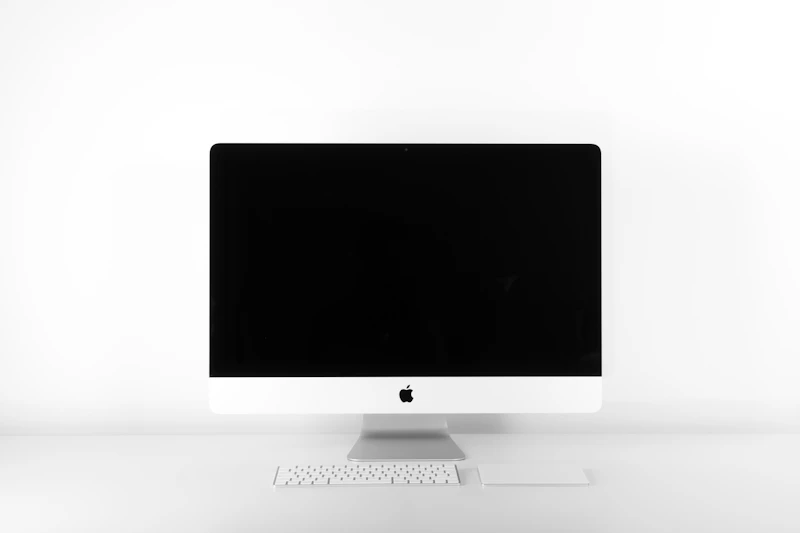
Low Vision Monitors: Display Settings and Hardware for Maximum Visibility
The right monitor and display settings can make computing comfortable for people with low vision. We cover screen size, resolution, color settings, and specialized displays.
BestElectronicsReviewed.com is a participant in the Amazon Services LLC Associates Program. We may earn a commission from qualifying purchases made through links on this page, at no extra cost to you.
For people with low vision, the monitor is the most important piece of computer hardware. The right combination of screen size, resolution, scaling, and color settings can make the difference between comfortable computing and constant eye strain.
Screen Size and Resolution
Bigger is generally better, but resolution matters too. A 32-inch 4K monitor at 150% display scaling gives you large, crisp text while maintaining enough screen space for applications. The 4K resolution ensures that scaled-up text remains sharp rather than blurry.
For maximum size, a 43-inch 4K TV used as a monitor puts enormous text at normal viewing distances. The LG C3 42-inch OLED is a popular choice because OLED's perfect blacks create exceptional contrast for text readability.
Avoid high-resolution monitors at small sizes. A 24-inch 4K display at native resolution has tiny text. Either use a larger screen or increase OS scaling — never strain to read small text.
Display Settings for Low Vision
Start with OS-level adjustments. On Windows, go to Settings > Display > Scale and set it to 150-200%. On macOS, go to System Settings > Displays and choose a scaled resolution with larger text. These settings enlarge everything proportionally — UI elements, text, and icons.
High contrast themes dramatically improve readability. Windows High Contrast themes (Settings > Accessibility > Contrast Themes) replace subtle color differences with bold black/white/yellow combinations. macOS offers Increase Contrast and Reduce Transparency options. Dark mode on both platforms reduces glare from bright backgrounds.
Cursor and pointer customization helps with tracking. Increase cursor size, change its color to something highly visible (like red or yellow), and enable the cursor locator (on macOS, shake the mouse to temporarily enlarge the cursor).
Color and Contrast Optimization
Many low vision conditions affect color perception differently. Macular degeneration, glaucoma, cataracts, and diabetic retinopathy each create different visual challenges. Experiment with display warmth (reducing blue light), contrast levels, and color inversion to find what works for your specific condition.
Monitor hardware matters. IPS panels offer the widest viewing angles and most consistent colors. OLED panels provide the highest contrast ratios, making text pop against dark backgrounds. Matte screen finishes eliminate reflections that can wash out text — glossy screens look sharper but can be unusable in bright rooms.
Monitor Arms and Positioning
A monitor arm lets you position the screen at exactly the right distance and angle. Pull it closer for reading small details, push it back for general use. Tilt and swivel adjustments accommodate different sitting positions and help users who have better vision in certain parts of their visual field.
Position the monitor to minimize glare from windows and overhead lights. A slightly downward viewing angle of 15-20 degrees is comfortable for most users. For users with visual field loss (such as hemianopia), position the monitor to favor their intact visual field.
Multi-Monitor and Split Screen
Some low vision users benefit from using two monitors — one for the main application and one for a magnified view of the area around the cursor. ZoomText's multi-monitor support shows the magnified view on a secondary display while keeping the primary display at normal zoom. This gives you overview context and detailed close-up simultaneously.
As an Amazon Associate, BestElectronicsReviewed earns from qualifying purchases.
Recommended Products
Top picks from our buying guides
Related Articles
Best Kitchen Tech for Meal Prep
Meal prep is easier with the right gadgets. From food scales to vacuum sealers, these kitchen electronics save hours every week.
Buyer GuidesWhole House Water Filtration: Smart Filters and Monitoring Systems
From under-sink filters to whole-house systems, smart water filtration monitors filter life, detects contaminants, and ensures clean water from every tap.
Buyer GuidesBest Homework and Study Apps for Middle and High School Students
From math solvers to flashcard apps to essay helpers, these study tools help older students work smarter without doing the work for them.