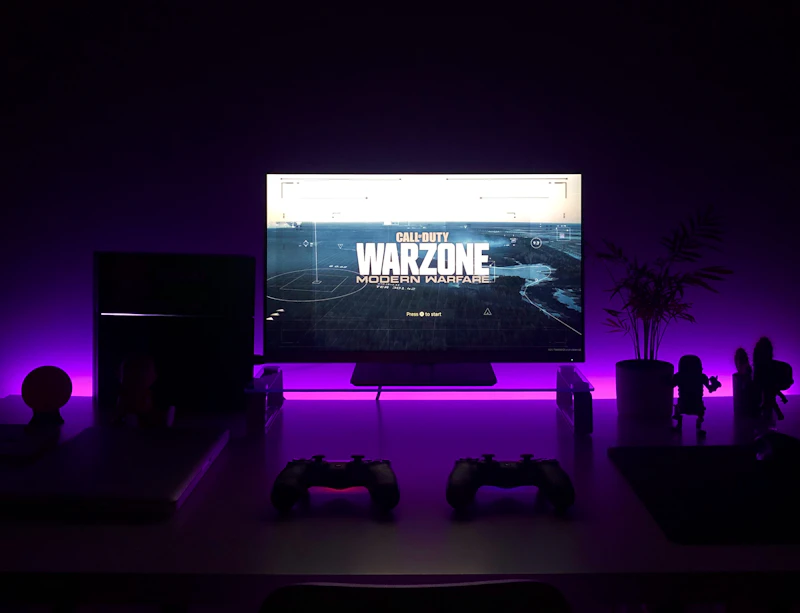
How to Set Up Game Streaming from PC to TV
Play your PC games on the big screen without moving your desktop. This step-by-step guide covers Steam Link, Moonlight, and the hardware you need.
BestElectronicsReviewed.com is a participant in the Amazon Services LLC Associates Program. We may earn a commission from qualifying purchases made through links on this page, at no extra cost to you.
Your gaming PC is powerful, but sometimes you want to play from the couch on a big TV. Game streaming lets you do exactly that — beam your PC games to any screen in your house over your local network. Here is how to set it up properly so it actually feels good to play.
What You Need Before You Start
The foundation of good game streaming is a solid network. Wi-Fi can work, but a wired Ethernet connection to both your PC and your TV-side device is the gold standard. If running Ethernet cables is impractical, Wi-Fi 6 or Wi-Fi 6E will get you acceptable results at 1080p. Older routers with Wi-Fi 5 often introduce enough latency to make fast-paced games unplayable.
On the TV side, you need a client device. The cheapest and most effective option is an Amazon Fire TV Stick 4K Max, which runs the Steam Link app natively and supports Wi-Fi 6E. Alternatively, an old laptop, a Raspberry Pi 4, or an Apple TV 4K all work as streaming clients.
You also need a controller. The 8BitDo Ultimate Bluetooth Controller is our top pick — it connects to nearly anything, has Hall Effect sticks that resist drift, and the charging dock keeps it always ready.
Method 1: Steam Link (Easiest)
Steam Link is Valve's free streaming solution and by far the simplest to configure. Install Steam on your PC and make sure it is running. On your TV-side device, download the Steam Link app from the app store. Both devices must be on the same local network.
Open Steam Link, and it will automatically detect your PC. Pair them using the PIN code displayed on screen. Steam Link will run a network test and tell you your estimated streaming quality. For the best experience, target under 10ms of network latency.
In the Steam Link settings, set streaming quality to "Beautiful" if your network handles it, or drop to "Balanced" if you see stuttering. Enable hardware decoding on the client device for lower latency. On your PC, open Steam settings and navigate to Remote Play. Enable "Hardware Encoding" and set the resolution to match your TV.
Method 2: Moonlight with Sunshine (Best Quality)
If you want lower latency and more control, Moonlight paired with Sunshine is the enthusiast setup. Sunshine is an open-source game streaming host that runs on your PC. Moonlight is the client app, available on almost every platform.
Install Sunshine on your gaming PC from the GitHub releases page. It runs as a background service and captures your screen using hardware encoding. On your client device, install the Moonlight app. Enter your PC's local IP address, accept the pairing request, and you are connected.
Moonlight supports up to 4K at 120fps streaming with HDR, which far exceeds Steam Link's capabilities. Configure the bitrate based on your network — start at 20 Mbps for 1080p and increase to 40-60 Mbps for 4K. Use HEVC encoding if your client supports it for better quality at lower bitrates.
Optimizing for Low Latency
Even with a perfect network, game streaming adds some input lag. Here is how to minimize it. On your PC, enable Game Mode in Windows and make sure your GPU drivers are current. Use a wired controller connected directly to the client device rather than Bluetooth, which adds several milliseconds of latency. On your TV, enable Game Mode in the display settings — this disables post-processing and can cut display latency from 50ms to under 10ms.
If you experience periodic stuttering, check for network congestion. Other devices streaming video, downloading updates, or running backups can choke your local network during gameplay. A dedicated gaming router with QoS settings lets you prioritize game streaming traffic.
What Games Work Best
Not every genre streams equally well. Turn-based games, RPGs, and strategy titles are perfect for streaming because a few milliseconds of latency do not matter. Platformers and action-adventure games work well with a properly optimized setup. Competitive shooters and rhythm games are the hardest — if you play ranked Valorant, stick to your monitor.
With the right hardware and a few minutes of configuration, game streaming transforms any TV in your house into a gaming display. The technology has matured significantly, and for most genres, the experience is nearly indistinguishable from playing locally.
As an Amazon Associate, BestElectronicsReviewed earns from qualifying purchases.
Recommended Products
Top picks from our buying guides
Samsung QN90D Neo QLED 4K TV (65\
#1 in Best TVs of 2026: Top Picks for Every Room and Budget
Check PriceRelated Articles
eSIM for International Travel: Complete Setup Guide for iPhone and Android
Skip the SIM card shops at the airport. An eSIM gives you instant data in 190+ countries at a fraction of roaming costs. Here is how to set one up.
How-ToHome Network Wiring: Run Ethernet Through Your House Like a Pro
WiFi is convenient but ethernet is faster and more reliable. Here is how to run ethernet cables through your home without destroying your walls.
How-ToHow to Light a Video Call So You Look Professional
Lighting is the difference between looking washed out and looking polished on video calls. Here's a simple setup that takes 5 minutes and costs under $50.