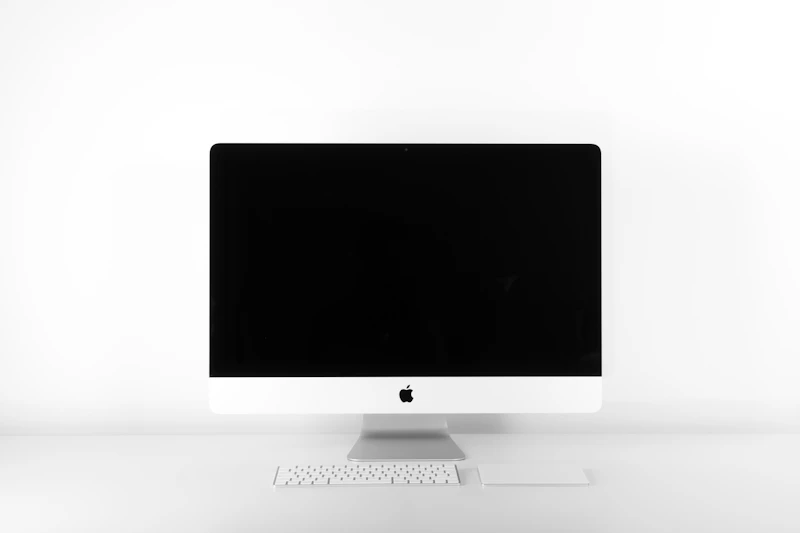
How to Choose the Right External Monitor for Your Laptop
Adding an external monitor is the single biggest productivity boost for laptop users. Here's how to pick the right size, resolution, and panel type for your work.
BestElectronicsReviewed.com is a participant in the Amazon Services LLC Associates Program. We may earn a commission from qualifying purchases made through links on this page, at no extra cost to you.
Research consistently shows that adding a second screen boosts productivity by 20-30% for most knowledge workers. A larger display means less window switching, more visible content, and less strain on your eyes and neck. Here is how to pick the right monitor for your specific laptop and workflow.
Step 1: Check Your Laptop's Output Capabilities
Before buying a monitor, verify what your laptop can drive:
- How many external displays? Intel and AMD laptops typically support 2-3 external monitors. Apple Silicon MacBooks support one external display on the base M-series chips and up to 4 on M-series Pro/Max chips.
- What resolution and refresh rate? Check your laptop's specs page. Most modern laptops support at least 4K@60Hz over USB-C or HDMI.
- USB-C with video output? If your laptop has Thunderbolt or USB4, you can use a single USB-C cable for video, data, and charging simultaneously. This is the cleanest setup.
Step 2: Choose Your Size
24-inch
Fits comfortably on most desks and pairs well with a laptop screen beside it. At 1080p, it is a great budget option. At 1440p or 4K, the pixel density is excellent. Good for smaller desks.
27-inch (The Sweet Spot)
The most popular monitor size for productivity. Large enough to comfortably split-screen two documents, small enough to fit most desks. At 27 inches, 4K resolution (163 PPI) is ideal — text is crisp and you have abundant screen real estate.
Our pick for most people: The Dell S2722QC 27" 4K USB-C Monitor delivers sharp 4K IPS visuals, built-in USB-C connectivity with 65W power delivery (charges most laptops while connected), and a built-in USB hub. One cable does everything.
32-inch
If you have the desk space, 32 inches at 4K provides a spacious workspace without needing multiple monitors. The extra size makes it comfortable to work with three or four windows visible simultaneously.
Ultrawide (34-38 inch)
Ultrawide monitors (21:9 or 32:9 aspect ratio) replace dual-monitor setups with a single seamless display. They are excellent for multitasking, coding, and creative work but take up significant desk width.
Our ultrawide pick: The LG 34WN80C-B 34" UltraWide USB-C provides a 3440x1440 IPS display with USB-C connectivity and 60W power delivery. Enough resolution for side-by-side document editing with sharp text.
Step 3: Choose Your Resolution
| Size | Minimum Resolution | Recommended | |------|-------------------|-------------| | 24" | 1920x1080 (1080p) | 2560x1440 (1440p) | | 27" | 2560x1440 (1440p) | 3840x2160 (4K) | | 32" | 2560x1440 (1440p) | 3840x2160 (4K) | | 34" UW | 3440x1440 | 3440x1440 |
Do not buy a 27-inch 1080p monitor. At that size, individual pixels are visible and text looks fuzzy. This is the most common monitor-buying mistake.
Step 4: Choose Your Panel Type
IPS (In-Plane Switching)
Wide viewing angles, accurate colors, good for collaborative work where multiple people view the screen. Most productivity monitors use IPS panels.
VA (Vertical Alignment)
Higher contrast ratios than IPS (deeper blacks), slightly narrower viewing angles. Great for mixed use (work during the day, movies at night).
OLED
Perfect blacks, incredible contrast, vibrant colors. Becoming available in monitors but expensive and susceptible to burn-in with static content (taskbars, menus). Best for creative professionals who also consume media.
For most laptop users doing general productivity: IPS is the safe, recommended choice.
Step 5: Connection Planning
The cleanest laptop-to-monitor setup uses a single USB-C cable that carries video, data, and power simultaneously. Here is what you need:
Single Cable Setup (Ideal)
- Monitor with USB-C input and power delivery (65W+ for most laptops)
- A USB-C cable rated for video (not a charging-only cable)
- Your laptop plugs into the monitor, charges, and outputs video — one cable on your desk
HDMI Setup (Universal)
- Works with any laptop made in the last 10 years
- Requires a separate power cable for charging
- Use HDMI 2.0 or higher for 4K@60Hz
Docking Station Setup (Multiple Monitors)
If you need 2+ external monitors, a Thunderbolt or USB-C docking station is the hub approach. Run one cable from your laptop to the dock, then HDMI/DisplayPort cables from the dock to each monitor.
Read our USB-C docking station guide →
Ergonomic Positioning
Monitor placement affects your comfort more than most people realize:
- Height: The top of the screen should be at or slightly below eye level
- Distance: 20-26 inches from your eyes (arm's length)
- Tilt: Tilted slightly back (10-20 degrees)
- Position: Directly in front of you, not off to the side (neck strain)
A monitor arm provides the most adjustability. The Amazon Basics Monitor Arm is a solid, affordable option that frees up desk space and lets you dial in perfect positioning.
Our Recommendations by Use Case
| Use Case | Best Monitor | Why | |----------|-------------|-----| | General productivity | Dell S2722QC 27" 4K | USB-C, 4K, great ergonomics | | Software development | LG 34" UltraWide | Side-by-side code and preview | | Photo/video editing | Dell U2723QE 27" 4K | Factory calibrated, 98% DCI-P3 | | Budget pick | ASUS ProArt PA278QV 27" 1440p | Factory calibrated, accurate colors | | Dual monitor setup | Two 24" 1440p IPS | Balanced size and cost |
Common Mistakes
- Buying too low a resolution for the size — 1080p on 27" looks bad
- Ignoring connection types — Make sure your laptop can actually drive the monitor at full resolution
- Forgetting about charging — A USB-C monitor with power delivery eliminates one cable
- Skipping a monitor arm — The included stand wastes desk space and limits adjustability
- Not calibrating — Out-of-the-box colors are often too blue. Reduce color temperature to 6000-6200K for more comfortable viewing
Browse our full monitor guide →
As an Amazon Associate, BestElectronicsReviewed earns from qualifying purchases.
Recommended Products
Top picks from our buying guides
Related Articles
eSIM for International Travel: Complete Setup Guide for iPhone and Android
Skip the SIM card shops at the airport. An eSIM gives you instant data in 190+ countries at a fraction of roaming costs. Here is how to set one up.
How-ToHome Network Wiring: Run Ethernet Through Your House Like a Pro
WiFi is convenient but ethernet is faster and more reliable. Here is how to run ethernet cables through your home without destroying your walls.
How-ToHow to Light a Video Call So You Look Professional
Lighting is the difference between looking washed out and looking polished on video calls. Here's a simple setup that takes 5 minutes and costs under $50.