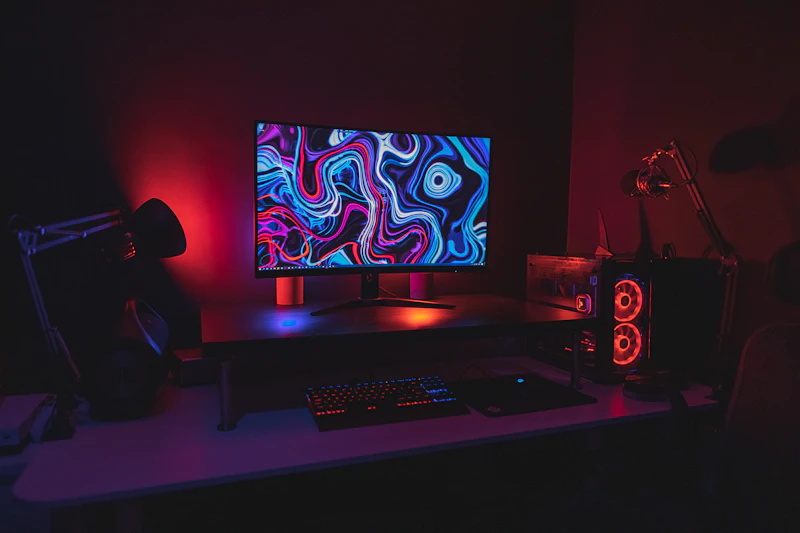
How to Build a Game Streaming Setup for Twitch
Everything you need to start streaming on Twitch — from capture cards to microphones to software configuration. A complete beginner's guide.
BestElectronicsReviewed.com is a participant in the Amazon Services LLC Associates Program. We may earn a commission from qualifying purchases made through links on this page, at no extra cost to you.
Starting a Twitch stream is easier and more affordable than most people think. You do not need a $3,000 PC, professional studio lighting, or a production team. What you need is a clear understanding of the essential components, smart budget allocation, and about an hour of setup time. Here is everything required to go from zero to live.
The Streaming PC: What You Actually Need
If you are streaming PC games, your gaming PC doubles as your streaming machine. Modern GPUs include hardware encoders (NVENC on NVIDIA, AMF on AMD) that handle video encoding with minimal performance impact. An RTX 3060 or better handles gaming and encoding simultaneously without noticeable frame drops.
The key specs for a streaming PC: a 6-core CPU minimum (Ryzen 5 5600 or better), 16GB of RAM (32GB is better for multitasking), and an SSD for your OS and streaming software. If you are streaming console games, the PC requirements are much lower since it only needs to handle encoding, not gaming.
For console streamers, a capture card is essential. The Elgato HD60 X captures 4K 30fps or 1080p 60fps passthrough with extremely low latency. It connects between your console and TV via HDMI, and feeds the video to your PC over USB. Setup takes five minutes — plug in two HDMI cables and one USB cable, and your streaming software detects it automatically.
Audio: The Most Important Investment
Viewers will tolerate mediocre video quality. They will not tolerate bad audio. This is where most new streamers underinvest. A dedicated USB microphone dramatically improves your stream's production quality compared to a headset mic.
The Fifine K669B USB Microphone is the budget champion at around $20-$25. It is a condenser microphone with a cardioid pickup pattern that focuses on your voice while rejecting background noise. Mount it on a desk stand or boom arm, position it 6-8 inches from your mouth, and it delivers audio quality that rivals microphones costing three times as much.
For better audio, the Audio-Technica AT2020USB+ or the Blue Yeti are excellent mid-range options in the $80-$130 range. But honestly, the Fifine or a Samson Q2U gets you 80% of the quality for 20% of the price. Invest the savings elsewhere.
Camera: Optional but Impactful
A facecam is not required for streaming. Many successful streamers use VTuber avatars, no camera at all, or just gameplay with voice. But if you want a camera, the Logitech C920 remains excellent at $50-$60. It shoots 1080p at 30fps with decent autofocus and good low-light performance for a webcam.
Lighting matters more than camera quality. A ring light or a small panel light positioned in front of your face at a 45-degree angle eliminates unflattering shadows and makes even a basic webcam look professional. A desktop ring light with adjustable brightness and color temperature costs $15-$25 and clips to your desk or monitor.
Software: OBS Studio
OBS Studio is free, open-source, and the standard streaming software for a reason. It handles everything — game capture, webcam overlay, audio mixing, scene transitions, and direct streaming to Twitch, YouTube, or both simultaneously.
Setting up OBS for your first stream involves a few key steps. Create a Scene and add a Game Capture source for your gameplay. Add a Video Capture Device source for your webcam if using one. Add an Audio Input Capture source for your microphone. Arrange these sources in the preview window — gameplay fills the background, webcam goes in a corner, and any overlays or alerts layer on top.
In OBS settings, navigate to Output and set your encoder to NVENC (if NVIDIA) or AMF (if AMD) for hardware encoding. Set your bitrate to 4,500-6,000 kbps for 1080p 60fps streaming. Under Video, set your base resolution to your monitor's native resolution and your output resolution to 1920x1080. Set the frame rate to 60 fps.
Streaming Settings That Matter
Your internet upload speed determines your maximum stream quality. Twitch recommends 6,000 kbps for 1080p 60fps, which requires a stable upload speed of at least 8-10 Mbps. If your upload is slower, drop to 720p 60fps at 3,500 kbps — viewers on Twitch generally prefer smooth 720p over choppy 1080p.
Use a wired Ethernet connection for streaming. Wi-Fi introduces packet loss that causes stream buffering and frame drops. If wired is impossible, Wi-Fi 6 is the minimum for acceptable streaming stability.
Set your audio bitrate to 160 kbps. Use noise suppression in OBS (the RNNoise filter is excellent and free) to remove background noise like keyboard clicks, fan noise, and room echo. Apply a noise gate to cut your mic when you are not speaking, preventing ambient noise from bleeding into your stream during quiet moments.
Going Live
Before your first public stream, do a test broadcast. OBS can record locally without streaming — use this to verify that your game capture, audio levels, and webcam look and sound correct. Check the recording for audio sync issues, frame drops, and visual quality. Adjust settings based on what you see.
Once everything looks good, connect OBS to your Twitch account through the Stream settings, enter your stream key, and hit Start Streaming. Congratulations — you are live. The total hardware investment for a basic but quality streaming setup can be under $100 if you already have a gaming PC: a budget microphone, a desk light, and a capture card only if streaming console games. Start simple, iterate based on viewer feedback, and upgrade gradually as your channel grows.
As an Amazon Associate, BestElectronicsReviewed earns from qualifying purchases.
Recommended Products
Top picks from our buying guides
Samsung QN90D Neo QLED 4K TV (65\
#1 in Best TVs of 2026: Top Picks for Every Room and Budget
Check PriceRelated Articles
eSIM for International Travel: Complete Setup Guide for iPhone and Android
Skip the SIM card shops at the airport. An eSIM gives you instant data in 190+ countries at a fraction of roaming costs. Here is how to set one up.
How-ToHome Network Wiring: Run Ethernet Through Your House Like a Pro
WiFi is convenient but ethernet is faster and more reliable. Here is how to run ethernet cables through your home without destroying your walls.
How-ToHow to Light a Video Call So You Look Professional
Lighting is the difference between looking washed out and looking polished on video calls. Here's a simple setup that takes 5 minutes and costs under $50.