How to Build a Budget-Friendly Gaming Setup Step by Step
You do not need to spend $3,000 to build a solid gaming setup. Here's a complete guide to assembling a capable rig for under $800 — monitor, peripherals, and all.
BestElectronicsReviewed.com is a participant in the Amazon Services LLC Associates Program. We may earn a commission from qualifying purchases made through links on this page, at no extra cost to you.
The gaming industry wants you to believe you need a $2,000 GPU and a $600 monitor. You do not. A thoughtful budget gaming setup delivers 90% of the experience at 30% of the cost. Here is how to build one from scratch, prioritizing where it actually matters.
The Budget Framework: Where to Spend and Where to Save
Gaming performance is a chain — the weakest link limits the experience. Here is where each dollar has the most impact:
Spend more on:
- GPU (graphics card) — The single biggest factor in gaming performance
- Monitor — You stare at this for hours; quality matters
- Mouse — Precision directly affects gameplay
Save on:
- Case — It holds components; aesthetics are optional
- Keyboard — Budget mechanical keyboards are excellent now
- Headset — A $30 headset gets you 80% of a $150 one for gaming
The Complete Setup: Under $800
Gaming Console Route (~$500 total)
If you do not need a PC for work or other tasks, a console is the most cost-effective gaming setup:
- Console: Xbox Series S ($250-300) or PS5 Digital ($400)
- Monitor: A 27-inch 1080p monitor ($120-150)
- Headset: HyperX Cloud Stinger 2 ($30-40)
- Extra controller ($50-60)
The Xbox Series S plays modern games at 1440p/60fps and has Game Pass — hundreds of games for $15/month. It is the best value in gaming today.
PC Gaming Route (~$800 total)
For a PC that handles 1080p gaming at 60+ fps in modern titles:
Key components:
- GPU: This is where you spend. A mid-range GPU from the current or previous generation handles 1080p high settings at 60+ fps in most games.
- CPU: A modern 6-core processor is sufficient for gaming. The CPU rarely bottlenecks at 1080p.
- RAM: 16GB DDR4 is the standard. 32GB is nice but not necessary at this budget.
- Storage: A 1TB NVMe SSD for your OS and games. Game install sizes range from 30-100GB, so 1TB holds 10-15 modern games.
- Monitor: See below.
The Gaming Monitor
For budget gaming, a 24-27 inch 1080p 144Hz monitor is the sweet spot. The jump from 60Hz to 144Hz is the most noticeable upgrade in PC gaming — everything feels smoother and more responsive.
Our pick: The AOC C27G2Z 27" 1080p 240Hz delivers a curved VA panel with excellent contrast, 240Hz refresh rate (future-proof for when you upgrade your GPU), and a 0.5ms response time. Available for well under $200.
Mouse
A good gaming mouse is surprisingly affordable. The most important specs are sensor accuracy, weight, and shape — not RGB lighting or button count.
Our pick: The Logitech G203 Lightsync has an excellent sensor, comfortable shape, and costs around $25-30. It competes with mice costing four times as much in actual gaming performance.
For a wireless upgrade, the Logitech G305 uses a HERO sensor and LIGHTSPEED wireless with zero perceptible latency. Under $40.
Keyboard
A mechanical keyboard dramatically improves the typing and gaming feel compared to a rubber dome keyboard. Budget mechanical keyboards have become genuinely excellent.
Our pick: The Redragon K552 Mechanical Gaming Keyboard uses Outemu blue switches (clicky), has an aluminum body, and costs about $25-35. For a quieter option, look for the red switch variant.
Headset
For gaming, you need clear positional audio (hearing footsteps directionally) and a decent microphone for team chat. You do not need a $150 headset for this.
Our pick: The HyperX Cloud Stinger 2 has lightweight comfort, clear directional audio, a flip-to-mute mic, and costs around $30. It is the best budget gaming headset available.
Desk and Chair
A stable desk and a comfortable chair complete the setup. You do not need a "gaming desk" or a "gaming chair" — both are marketing terms for often inferior products.
A standard 48-60 inch desk from IKEA or Amazon provides plenty of space. For seating, an ergonomic office chair from a reputable brand will keep you comfortable for years. A used Herman Miller or Steelcase from a used office furniture store ($200-300) is a better investment than any $400 gaming chair.
Setup Optimization Tips
Network
Use a wired Ethernet connection for online gaming. Wi-Fi adds latency and packet loss that directly affect competitive gameplay. A $5 Ethernet cable from your router to your PC eliminates the most common source of lag.
Display Settings
- Enable your monitor's highest refresh rate in Windows Display Settings
- In-game: reduce shadows, volumetric fog, and ray tracing first — these are the biggest performance hits with the least visual impact
- Enable FreeSync/G-Sync compatible mode to eliminate screen tearing
Audio
Enable Windows Spatial Sound (free) or Dolby Atmos for Headphones ($15 one-time) for improved positional audio in games. This makes a bigger difference than upgrading to an expensive headset.
Lighting
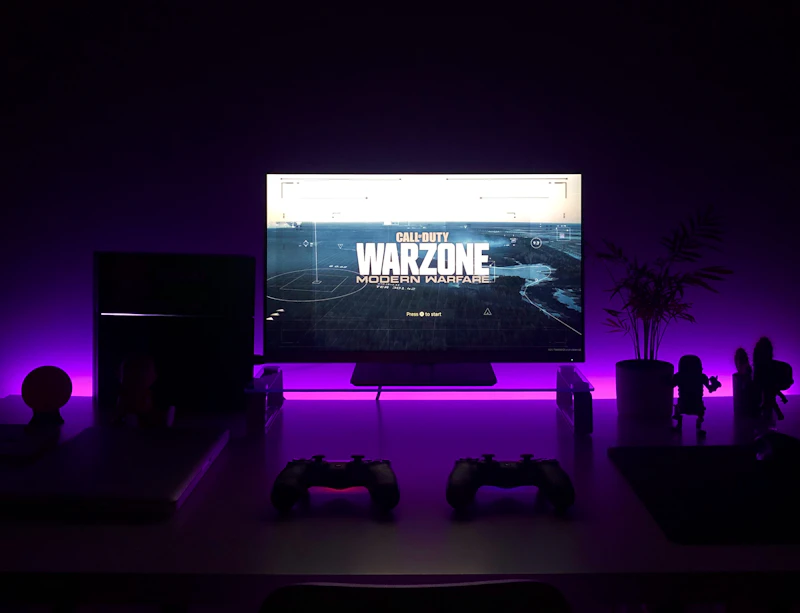
Bias lighting (an LED strip behind your monitor) reduces eye strain dramatically during long gaming sessions. A $15 USB LED strip plugged into your monitor changes the experience.
Upgrade Path
Start with this budget setup and upgrade strategically:
- First upgrade: GPU — the biggest FPS boost per dollar
- Second upgrade: Monitor — jump from 1080p/144Hz to 1440p/165Hz
- Third upgrade: RAM — 16GB to 32GB when games demand it
- Fourth upgrade: Storage — add a second SSD for more game storage
As an Amazon Associate, BestElectronicsReviewed earns from qualifying purchases.
Recommended Products
Top picks from our buying guides
Related Articles
eSIM for International Travel: Complete Setup Guide for iPhone and Android
Skip the SIM card shops at the airport. An eSIM gives you instant data in 190+ countries at a fraction of roaming costs. Here is how to set one up.
How-ToHome Network Wiring: Run Ethernet Through Your House Like a Pro
WiFi is convenient but ethernet is faster and more reliable. Here is how to run ethernet cables through your home without destroying your walls.
How-ToHow to Light a Video Call So You Look Professional
Lighting is the difference between looking washed out and looking polished on video calls. Here's a simple setup that takes 5 minutes and costs under $50.