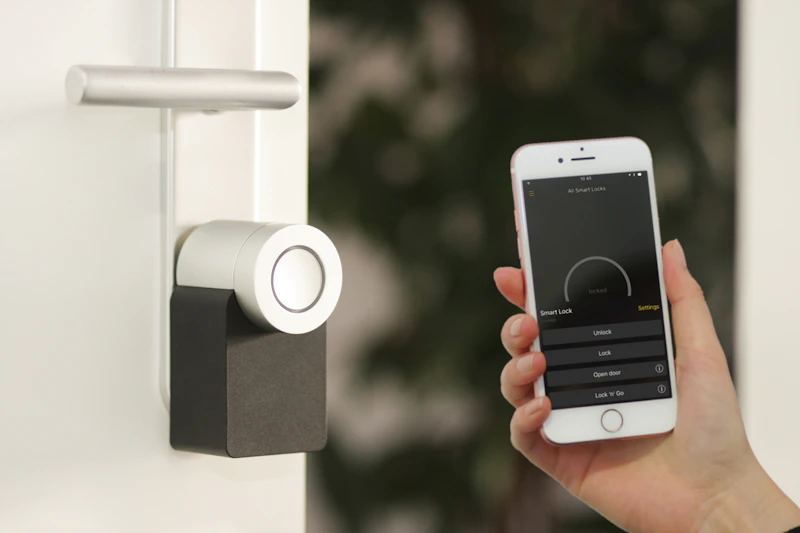
Fix Smart Lock That Won't Respond to Your Phone
Standing at your door while your smart lock ignores your phone is the worst smart home experience. Here's how to fix unresponsive smart locks reliably.
BestElectronicsReviewed.com is a participant in the Amazon Services LLC Associates Program. We may earn a commission from qualifying purchases made through links on this page, at no extra cost to you.
Being locked out because your smart lock won't communicate with your phone is the kind of irony that makes people rip out smart locks and go back to keys. Before you do that, here are the fixes.
Fix 1: Check the Batteries
Low batteries are the #1 cause of unresponsive smart locks. Unlike a flashlight that gradually dims, smart locks can go from "working fine" to "completely dead" quickly because the motor and wireless radio draw significant power.
Most smart locks give low battery warnings through the app and sometimes through beeping at the lock. But if you've ignored those warnings or they didn't reach you (because the lock was already too low on power to communicate), dead batteries are the likely cause.
Replace with fresh high-quality alkaline batteries or lithium batteries. The Energizer Ultimate Lithium AA batteries last significantly longer in smart locks than alkaline alternatives and perform better in extreme temperatures.
The Yale Assure Lock 2 has a 9V battery emergency power terminal on the exterior — if the batteries die, touch a 9V battery to the terminal to temporarily power the lock and enter your code.
Fix 2: Bluetooth Range and Connection
Most smart locks use Bluetooth for direct phone-to-lock communication. Bluetooth range is limited and affected by doors, walls, and interference.
Get Closer
Stand within 5 feet of the lock with your phone. Bluetooth through a heavy door or thick wall can be unreliable at longer distances. Many locks need the phone within 10 feet for reliable operation.
Force Reconnect
Toggle Bluetooth off and on in your phone settings. Open the lock's app and wait for it to discover the lock. Some apps have a manual "refresh" or "connect" option.
Clear Bluetooth Cache (Android)
Settings → Apps → Bluetooth → Clear Cache. This resolves many persistent Bluetooth connection issues.
Fix 3: Check WiFi Bridge Connection
Many smart locks use Bluetooth for local communication and a WiFi bridge for remote access. If the WiFi bridge is offline, you lose remote control but should still have Bluetooth.
If BOTH remote and local control are broken:
- Check that the WiFi bridge is powered and has a solid connection light
- Restart the bridge by unplugging it for 30 seconds
- Check that the bridge is within Bluetooth range of the lock (typically the same room or adjacent room)
The August WiFi Smart Lock has WiFi built in (no separate bridge needed), eliminating this failure point.
Fix 4: Re-Pair the Lock
If the lock doesn't respond to Bluetooth at all:
- Delete the lock from your app
- Remove the lock's batteries for 30 seconds
- Reinstall batteries
- Put the lock in pairing mode (varies by model — check the manual)
- Re-add the lock in the app
This clears any corrupted pairing data and establishes a fresh connection.
Fix 5: Check for App Issues
The lock's app may have crashed or lost its authentication:
- Force close the lock's app
- Re-open it and try again
- If that fails, log out and log back in
- Check for app updates in the App Store/Play Store
- As a last resort, uninstall and reinstall the app (you may need to re-pair the lock)
Fix 6: Update Lock Firmware
Smart lock manufacturers push firmware updates that fix connectivity issues, improve Bluetooth stability, and patch security vulnerabilities. Check the lock's app for available updates.
Firmware updates require the lock to have sufficient battery and a stable connection to your phone. Don't start an update with low batteries.
Fix 7: Check for WiFi Interference
If your lock uses WiFi directly, the same interference issues that affect other WiFi devices apply. A lock installed on a metal door or near a metal door frame faces additional challenges because metal blocks WiFi signals.
Solutions:
- Ensure your router or mesh node has adequate signal at the door (check with a WiFi analyzer app standing at the door)
- Add a mesh WiFi node near the front door
- Some locks perform better with a dedicated WiFi channel — check if your router lets you assign a specific channel to the 2.4 GHz band
Fix 8: Temperature and Weather Issues
Extreme cold (below 20°F) and extreme heat (above 110°F) affect battery performance and can cause temporary lock unresponsiveness. In cold weather, lithium batteries perform dramatically better than alkaline.
Moisture intrusion in outdoor-facing locks can corrode battery contacts and electronics. If your lock is exposed to rain, check the battery compartment for moisture and corrosion. Clean contacts with isopropyl alcohol.
Fix 9: Physical Mechanism Issues
Sometimes the problem isn't electronic — it's mechanical. If the lock motor runs (you hear it) but the bolt doesn't move:
- The bolt may be misaligned with the door frame. Adjust the strike plate.
- The deadbolt may be stiff. Lubricate with graphite spray (not WD-40, which attracts dust).
- The door may have shifted seasonally, causing the bolt to bind.
Always Have a Backup
Smart locks should complement, not replace, physical access:
- Keep a physical key in a lockbox or with a trusted neighbor
- Set up a backup PIN code on the lock's keypad
- Emergency power terminal — most smart locks have one for dead battery situations
- The SwitchBot Keypad Touch adds fingerprint and keypad entry to existing smart locks
The smart lock that locked you out once is the smart lock that motivates you to set up redundant access methods. Don't let it happen twice.
Browse our smart lock comparison →
As an Amazon Associate, BestElectronicsReviewed earns from qualifying purchases.
Recommended Products
Top picks from our buying guides
Related Articles
eSIM for International Travel: Complete Setup Guide for iPhone and Android
Skip the SIM card shops at the airport. An eSIM gives you instant data in 190+ countries at a fraction of roaming costs. Here is how to set one up.
How-ToHome Network Wiring: Run Ethernet Through Your House Like a Pro
WiFi is convenient but ethernet is faster and more reliable. Here is how to run ethernet cables through your home without destroying your walls.
How-ToHow to Light a Video Call So You Look Professional
Lighting is the difference between looking washed out and looking polished on video calls. Here's a simple setup that takes 5 minutes and costs under $50.