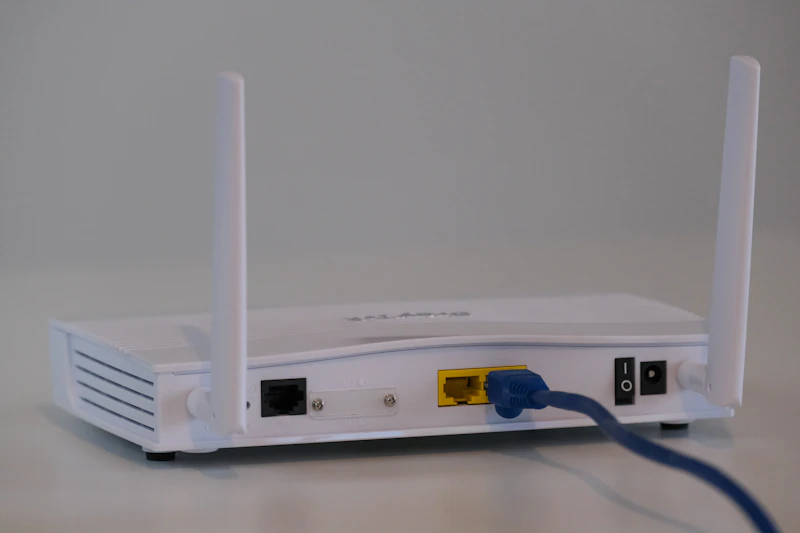
Fix Your Mesh WiFi Dead Zones
Mesh WiFi should eliminate dead zones, but sometimes it creates new ones. Here's how to diagnose and fix coverage gaps in your mesh network.
BestElectronicsReviewed.com is a participant in the Amazon Services LLC Associates Program. We may earn a commission from qualifying purchases made through links on this page, at no extra cost to you.
You bought a mesh WiFi system to eliminate dead zones, but some areas still have poor coverage. The problem isn't the mesh technology — it's node placement. Here's how to optimize your mesh setup.
Step 1: Map Your Current Coverage
Walk through every room with your phone running a WiFi speed test app. Note the download speed in each location. Mark areas where speed drops below 50% of your plan speed as "weak zones" and areas below 25% as "dead zones."
This creates a coverage map that shows exactly where nodes need to be repositioned or added.
Step 2: Check Node-to-Node Signal Strength
In your mesh app, check the connection quality between nodes:
- TP-Link Deco: App → Overview → tap each node → check "Backhaul Connection"
- ASUS ZenWiFi: App → Network Map → tap satellite nodes → check signal strength
- Netgear Orbi: App → tap satellite → Connection Status
- eero: App → tap each eero → check "Signal Strength to Gateway"
If a node shows weak backhaul connection (below -70 dBm or "poor"), it's too far from the nearest node and needs to be moved closer.
Step 3: Optimize Node Placement
The Golden Rules
-
Halfway between problem areas and the nearest good node. Don't place a node IN the dead zone — place it between the dead zone and the working area.
-
Line of sight where possible. Every wall between nodes reduces signal. Concrete and metal are the worst offenders.
-
Same floor first, then between floors. Horizontal coverage is easier than vertical. For multi-story homes, place at least one node per floor.
-
Central placement on each floor. A node in the corner covers half a floor. A node in the center covers the entire floor.
-
Elevated, not on the floor. Place nodes on shelves, counters, or tables — 3-5 feet high. Floor-level placement is blocked by furniture legs and loses range.
-
Away from metal and water. Don't place nodes near fish tanks, metal filing cabinets, refrigerators, or HVAC ductwork. These block RF signals.
The TP-Link Deco XE75 3-pack with WiFi 6E handles most homes under 5,500 sq ft when properly placed.
Step 4: Add a Node for Persistent Dead Zones
If repositioning doesn't solve it, you need another node. Most mesh systems allow adding individual nodes. Place the new node specifically to bridge the gap between existing coverage and the dead zone.
For particularly difficult areas (basements separated by concrete, detached garages), consider a node with Ethernet backhaul. Run an Ethernet cable from a working area to the problem zone and connect a mesh node via Ethernet. This eliminates wireless backhaul losses and provides full-speed coverage in the dead zone.
Read our mesh WiFi buying guide →
Step 5: Switch to Wired Backhaul (If Possible)
The biggest performance improvement for any mesh system is switching from wireless backhaul to wired (Ethernet) backhaul. With wireless backhaul, nodes communicate with each other wirelessly, consuming bandwidth that could otherwise serve your devices. With wired backhaul, inter-node communication happens over Ethernet, freeing all wireless bandwidth for your devices.
If you can run Ethernet to even one satellite node, do it. The ASUS ZenWiFi AX (XT8) supports both wired and wireless backhaul and will automatically prefer wired when available.
Step 6: Check Channel Congestion
In dense neighborhoods (apartments, townhouses), neighboring WiFi networks compete for the same channels. Your mesh system may be trying to use congested channels for backhaul, reducing performance.
Most mesh systems auto-select channels, but some allow manual override. If your system supports it, run a WiFi analyzer to find the least congested channels and set your backhaul channel manually.
Step 7: Update Firmware
Mesh system manufacturers regularly push firmware updates that improve backhaul efficiency, roaming behavior, and band steering algorithms. Check for updates in your mesh app.
Step 8: Consider a Dedicated Backhaul Band
Premium mesh systems (like the Netgear Orbi RBKE963) include a dedicated 6 GHz band exclusively for backhaul. This means the 2.4 GHz and 5 GHz bands are entirely free for your devices. If your current mesh uses the same bands for both backhaul and client devices, upgrading to a tri-band system with dedicated backhaul delivers a massive improvement.
Common Mesh Problems and Quick Fixes
| Symptom | Likely Cause | Fix | |---------|-------------|-----| | Good speed near nodes, bad between | Nodes too far apart | Move nodes closer or add one between | | Good 5 GHz, bad 2.4 GHz | 2.4 GHz band congested | Change 2.4 GHz channel | | Devices stick to far node | Poor band steering | Update firmware; restart mesh system | | Speed good but drops periodically | Interference or channel switching | Set manual channels | | One node shows offline frequently | Weak power or WiFi to that node | Check power connection; move closer |
When to Upgrade Your Mesh System
If your mesh system is more than 3 years old and you're still fighting dead zones after optimization, the hardware itself may be the limitation. WiFi 6E and WiFi 7 mesh systems have dramatically better range, throughput, and device handling than WiFi 5 and early WiFi 6 systems.
Compare the latest mesh systems →
As an Amazon Associate, BestElectronicsReviewed earns from qualifying purchases.
Recommended Products
Top picks from our buying guides
Related Articles
eSIM for International Travel: Complete Setup Guide for iPhone and Android
Skip the SIM card shops at the airport. An eSIM gives you instant data in 190+ countries at a fraction of roaming costs. Here is how to set one up.
How-ToHome Network Wiring: Run Ethernet Through Your House Like a Pro
WiFi is convenient but ethernet is faster and more reliable. Here is how to run ethernet cables through your home without destroying your walls.
How-ToHow to Light a Video Call So You Look Professional
Lighting is the difference between looking washed out and looking polished on video calls. Here's a simple setup that takes 5 minutes and costs under $50.