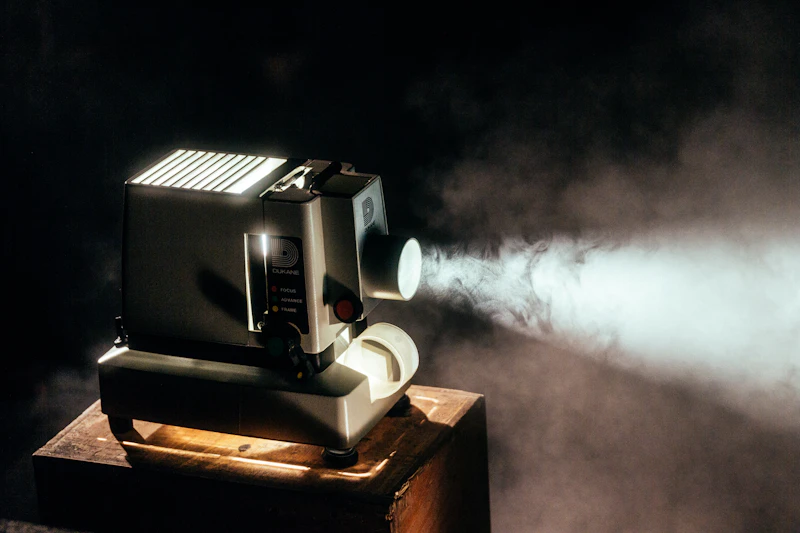
Common Projector Mistakes That Ruin Image Quality
Your projector probably looks worse than it should. These common setup mistakes are killing your image quality — and most are free to fix.
BestElectronicsReviewed.com is a participant in the Amazon Services LLC Associates Program. We may earn a commission from qualifying purchases made through links on this page, at no extra cost to you.
Projectors promise a cinematic experience at home. The reality for most buyers is a washed-out, misaligned, blurry image that looks nothing like the YouTube review. The projector hardware is usually fine — the problem is setup. Projectors are more sensitive to placement, ambient light, and screen surface than TVs, and getting these details wrong degrades the image dramatically.
Here are the most common projector mistakes and the fixes that transform a disappointing image into a genuinely cinematic one.
Mistake #1: Using a White Wall Instead of a Screen
The most common projector setup mistake is projecting onto a white wall. While a white wall works in a pinch, walls are textured — the bumps and imperfections scatter light in random directions, reducing contrast, sharpness, and color accuracy. Paint sheen matters too: flat paint absorbs too much light, while glossy paint creates hotspots.
The fix: A dedicated projector screen dramatically improves image quality. Screens have a smooth, uniform surface designed to reflect light evenly. An Amazon Basics 100-inch Projector Screen costs $35 and the improvement over a wall is immediately visible.
For a permanent setup, a fixed-frame screen mounted on the wall provides the flattest, most uniform surface. For flexible setups, a pull-down screen stores compactly and deploys in seconds.
Mistake #2: Too Much Ambient Light
Projectors create an image by projecting light onto a surface. Ambient light (from windows, lamps, overhead lights) competes with the projected light, washing out the image. This is why projector images look incredible in dark rooms and terrible in bright ones.
The fix: Control ambient light as much as possible. Blackout curtains on windows, dimmable overhead lights, and bias lighting (a strip of LEDs behind the screen) all improve perceived contrast. If you cannot darken the room, look for a projector with at least 2,000 ANSI lumens — enough to compete with moderate ambient light.
The Anker Nebula Capsule 3 at 200 lumens is designed for dark rooms only. For rooms with ambient light, you need a projector with significantly more brightness.
Read our full projector guide →
Mistake #3: Wrong Throw Distance
Every projector has a throw ratio that determines how far it needs to be from the screen to produce a given image size. Place it too close and the image is too small. Place it too far and the image overflows the screen.
The fix: Check your projector's throw ratio in the manual or online specs, then calculate the correct distance for your desired screen size. Most manufacturer websites have calculators for this. A 1.2:1 throw ratio means the projector needs to be 12 feet away for a 10-foot-wide image.
Short-throw projectors (throw ratio under 1.0:1) can produce large images from just a few feet away — ideal for small rooms.
Mistake #4: Relying on Keystone Correction
Keystone correction digitally adjusts the image when the projector is not perfectly perpendicular to the screen. It fixes the trapezoidal distortion but at a significant cost: it shrinks the usable resolution and introduces softness. A 1080p projector using keystone correction is effectively displaying less than 1080p.
The fix: Position the projector so that it is level with the center of the screen and perfectly perpendicular. Use the projector's lens shift (if available) for vertical and horizontal adjustment — lens shift is optical, not digital, so it maintains full resolution. Keystone should be a last resort, not a default.
Mistake #5: Never Calibrating the Image
Projectors ship with default settings optimized for showroom brightness (Vivid or Dynamic mode), not for home viewing accuracy. These modes oversaturate colors, crush blacks, and over-sharpen the image.
The fix: Switch to Cinema, Movie, or Standard mode. Then adjust:
- Brightness: Until dark scenes show shadow detail without graying out blacks
- Contrast: Until bright scenes are vivid without clipping highlights
- Color temperature: Set to Warm or 6500K for accurate, natural colors
- Sharpness: Reduce from default. Over-sharpening creates visible halos around edges
Mistake #6: Poor Audio Setup
Projectors have built-in speakers that are universally terrible. The speakers are tiny, pointed away from the viewer (toward the ceiling or rear wall), and lack any meaningful bass. Relying on projector audio ruins an otherwise good viewing experience.
The fix: Connect an external audio source. A Sonos Beam Gen 2 soundbar placed below the screen provides immersive sound. Even a $30 Bluetooth speaker is dramatically better than built-in projector audio.
Connect via HDMI ARC, optical audio, or Bluetooth (if the projector supports it). For portable projectors used outdoors, a waterproof Bluetooth speaker like the JBL Flip 6 works perfectly.
Mistake #7: Not Replacing the Lamp
Traditional lamp-based projectors gradually lose brightness as the lamp ages. A lamp that output 3,000 lumens when new might output 2,000 lumens after 2,000 hours — a 33 percent brightness loss that happens so gradually you do not notice until you install a fresh lamp and see the dramatic difference.
The fix: Check your projector's lamp hours (usually in the settings menu). Most lamps last 3,000-5,000 hours. If you are past the halfway point and the image seems dimmer than you remember, a replacement lamp restores the original brightness.
LED and laser projectors do not have this issue — their light sources last 20,000-30,000 hours with minimal degradation.
The Projector Setup Checklist
- [ ] Dedicated screen (not a bare wall)
- [ ] Room darkened (blackout curtains, dimmable lights)
- [ ] Correct throw distance calculated and set
- [ ] Projector level and perpendicular to screen (minimal keystone)
- [ ] Cinema/Movie picture mode selected
- [ ] External audio connected
- [ ] Lamp hours checked (for lamp-based projectors)
Final Thoughts
A properly set up projector delivers an experience that no TV can match — a 100-plus-inch image with cinematic immersion that fills your field of view. But projectors demand more setup attention than TVs. The seven fixes above — most of which cost nothing — transform a mediocre projection into something genuinely spectacular. Take the time to set it up right and you will never go back to watching movies on a TV.
As an Amazon Associate, BestElectronicsReviewed earns from qualifying purchases.
Recommended Products
Top picks from our buying guides
Related Articles
Guide: 5 Monitor Buying Mistakes That Waste Your Money (Spring 2026)
Guide: 5 Monitor Buying Mistakes That Waste Your Money (Spring 2026) — expert analysis and tested recommendations from BestElectronicsReviewed.
MistakesGuide: 5 Monitor Buying Mistakes That Waste Your Money (March 2026)
Guide: 5 Monitor Buying Mistakes That Waste Your Money (March 2026) — expert analysis and tested recommendations from BestElectronicsReviewed.
MistakesStop Making These TV Buying Mistakes
The TV you see in the store is not the TV you get at home. Here are the most common mistakes that lead to buyer's remorse — and how to avoid them.