The Beginner's Guide to Home Networking
Modems, routers, switches, access points, mesh — home networking is confusing. This guide explains every piece in plain English so you can build a reliable network.
BestElectronicsReviewed.com is a participant in the Amazon Services LLC Associates Program. We may earn a commission from qualifying purchases made through links on this page, at no extra cost to you.
A solid home network is the foundation for everything in a modern home — streaming, gaming, smart devices, security cameras, and remote work. But the terminology is confusing and the equipment choices are overwhelming. This guide breaks it all down.
The Building Blocks: What Each Device Does
Modem
Your modem is the translator between your ISP's network and your home. It converts the signal from your cable, fiber, or DSL line into a standard Ethernet signal. Your ISP usually provides one, but owning your own eliminates the $10-15/month rental fee.
For cable internet: The Motorola MB8611 supports DOCSIS 3.1 and handles speeds up to 2.5 Gbps. It pays for itself in 6 months versus renting from your ISP.
For fiber: Your ISP's Optical Network Terminal (ONT) is your modem. You typically cannot replace it, but you can replace the router that connects to it.
Router
The router directs traffic between devices on your network and the internet. It assigns IP addresses, manages which device gets bandwidth, and creates your Wi-Fi network.
Your ISP's combo modem/router is usually mediocre. Replacing the router portion (or putting the ISP unit in bridge mode) with a dedicated router dramatically improves performance.
Switch
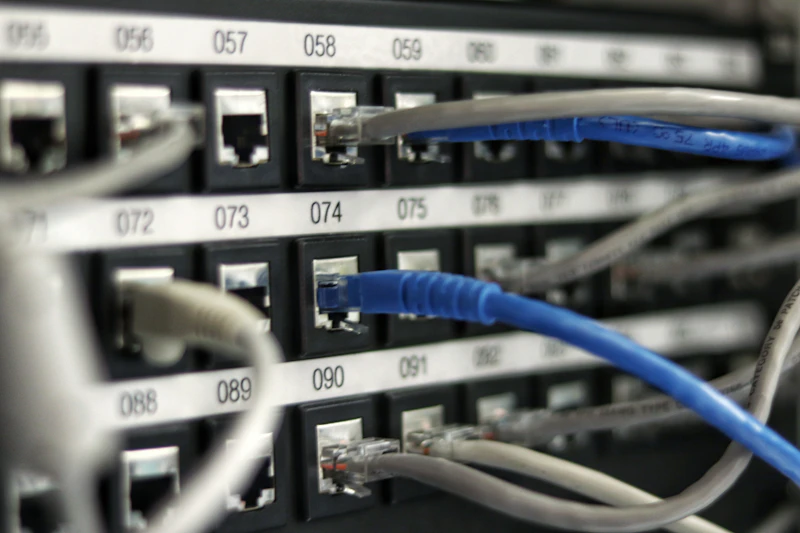
A network switch adds more Ethernet ports. Your router typically has 4 Ethernet ports. If you have a desktop, NAS, gaming console, smart TV, and a printer that all need wired connections, a switch gives you the extra ports.
An unmanaged 8-port gigabit switch costs $15-25 and requires zero configuration — just plug it in.
Access Point
An access point extends your Wi-Fi coverage without creating a separate network. It connects to your router via Ethernet and broadcasts the same network name. Professional installations use access points extensively.
Mesh System
A mesh system is a modern, consumer-friendly solution that combines the router and access points into a unified package. Multiple mesh nodes communicate with each other to blanket your home in Wi-Fi.
The TP-Link Deco XE75 (3-pack) covers up to 5,500 sq ft with Wi-Fi 6E, dedicated backhaul, and a genuinely simple app-based setup.
The Two Things That Actually Matter
After testing dozens of networking setups, two factors make the biggest difference in real-world performance:
1. Wired Backhaul
If you use a mesh system, connecting the nodes to each other via Ethernet (instead of relying on wireless backhaul) doubles your effective speeds. Most people skip this step, but running a single Ethernet cable to each mesh node transforms performance.
2. Router Placement
Put your router in the center of your home, elevated (on a shelf, not the floor), and away from other electronics. Wi-Fi signals radiate outward in all directions. A router in the corner of your basement covers your neighbor's house better than yours.
Setting Up From Scratch: Step by Step
Step 1: Connect Your Modem
Plug the coax cable (cable) or Ethernet cable (fiber ONT) into your modem. Plug the modem into power. Wait 2-5 minutes for it to sync with your ISP (the lights will stabilize).
Step 2: Connect Your Router
Run an Ethernet cable from the modem to the WAN/Internet port on your router. Power on the router. Wait 2-3 minutes.
Step 3: Configure Your Router
Connect to the router's default Wi-Fi network (the name and password are on a sticker on the device). Open a browser and navigate to the router's admin page (usually 192.168.0.1 or 192.168.1.1). The setup wizard will guide you through:
- Creating a Wi-Fi network name (SSID) and password
- Setting an admin password (different from the Wi-Fi password — do not skip this)
- Choosing your Wi-Fi channels (auto is fine for most people)
- Enabling automatic firmware updates
Step 4: Connect Your Devices
Connect everything that can be wired via Ethernet: desktop computers, gaming consoles, smart TVs, and your NAS. Use Wi-Fi for mobile devices, laptops on the move, and smart home devices.
Step 5: Optimize
After a week of use, check your router's admin panel to see which channels are congested. If your 5 GHz network is on channel 36 and your neighbor's is too, switching to channel 149 can dramatically reduce interference.
Security Essentials
- Change the default admin password — bots scan for routers with factory passwords
- Use WPA3 encryption (or WPA2 if your devices do not support WPA3)
- Disable WPS — it has known vulnerabilities
- Enable automatic firmware updates — router vulnerabilities are discovered regularly
- Create a separate guest network for visitors and IoT devices
Read our guide to setting up a guest Wi-Fi network →
When to Upgrade
You should upgrade your networking equipment if:
- Your internet plan speed exceeds what your router can deliver (check with a wired speed test)
- You have dead zones in your home
- You have more than 25 connected devices (smart bulbs, cameras, etc.)
- Your router is more than 4-5 years old (missing security patches)
- You experience buffering during video calls
For a typical 3-bedroom home, a TP-Link Archer AXE75 router or a mesh system handles everything modern households need.
The Bottom Line
A reliable home network costs $150-300 to set up properly and lasts 4-5 years. That is less than a year of ISP modem rental fees. Invest in good equipment upfront, follow the placement and security basics above, and you will forget about network problems entirely.
Browse our complete networking guide →
As an Amazon Associate, BestElectronicsReviewed earns from qualifying purchases.
Recommended Products
Top picks from our buying guides
Ubiquiti UniFi Switch Lite 16 PoE
#1 in Best Network Switches with VLANs 2026
Check PriceRelated Articles
eSIM for International Travel: Complete Setup Guide for iPhone and Android
Skip the SIM card shops at the airport. An eSIM gives you instant data in 190+ countries at a fraction of roaming costs. Here is how to set one up.
How-ToHome Network Wiring: Run Ethernet Through Your House Like a Pro
WiFi is convenient but ethernet is faster and more reliable. Here is how to run ethernet cables through your home without destroying your walls.
How-ToHow to Light a Video Call So You Look Professional
Lighting is the difference between looking washed out and looking polished on video calls. Here's a simple setup that takes 5 minutes and costs under $50.