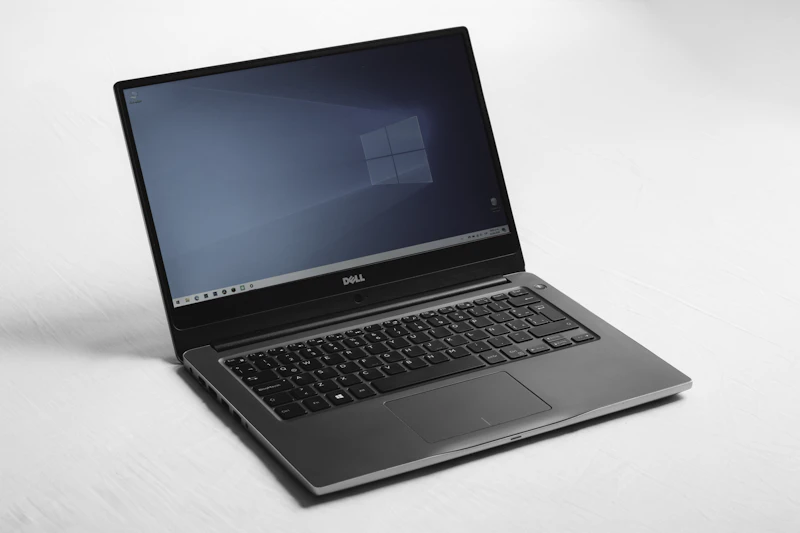
5 Mistakes That Overheat and Kill Your Laptop
Heat is the number one killer of laptops. These five common habits accelerate thermal damage and shorten your laptop's lifespan — and they're all easily avoidable.
BestElectronicsReviewed.com is a participant in the Amazon Services LLC Associates Program. We may earn a commission from qualifying purchases made through links on this page, at no extra cost to you.
Laptop processors are designed to operate at temperatures up to 100 degrees Celsius, but sustained heat at those levels degrades components over time. Solder joints weaken, thermal paste dries out, battery capacity diminishes, and eventually, components fail entirely. Most laptop deaths attributed to "old age" are actually heat damage accumulated through years of thermal abuse.
Here are the five most common mistakes that overheat laptops and how to avoid each one.
Mistake 1: Using Your Laptop on Soft Surfaces
This is the most common and most damaging mistake. Using a laptop on a bed, couch, blanket, pillow, or your lap blocks the bottom air intake vents. Without airflow, heat has nowhere to go. Internal temperatures spike from 70-80 degrees to 95-100 degrees within minutes.
Your laptop's thermal design assumes hard, flat surfaces with unobstructed airflow. The rubber feet on the bottom create a gap between the laptop and the surface for air intake. Soft surfaces eliminate that gap and suffocate the cooling system.
The fix: Always use your laptop on a hard, flat surface. If you want to use it in bed or on the couch, place it on a book, a tray, or a laptop cooling pad ($20). A cooling pad provides a flat surface with built-in fans that actively push air into the laptop's intake vents.
The Havit HV-F2056 Laptop Cooling Pad ($18) is a simple, effective solution — three quiet fans, adjustable height, and compatibility with laptops up to 17 inches.
Mistake 2: Never Cleaning the Air Vents
Laptop vents accumulate dust, hair, and debris over time. After 1-2 years, this buildup can reduce airflow by 50% or more. You'll notice the symptoms: louder fan noise (the fans spin faster to compensate for reduced airflow), higher chassis temperature, and thermal throttling (the CPU slowing itself down to prevent overheating).
The fix: Clean your laptop's vents every 3-6 months. Use a can of compressed air ($8) to blow dust out of the intake and exhaust vents. Hold the can upright, use short bursts, and aim from multiple angles. If you can see a visible lint buildup in the vents, you've waited too long.
For a deeper clean (every 1-2 years), open the bottom panel of your laptop (most require a Phillips screwdriver or Torx T5) and blow out the internal fans and heatsink fins. This removes dust that compressed air from outside can't reach. Check YouTube for a disassembly guide specific to your laptop model before attempting this.
Mistake 3: Running Intensive Tasks While Charging in Hot Environments
Charging generates heat. Running intensive software (gaming, video rendering, large compilations) generates heat. Ambient heat from direct sunlight or a warm room adds more heat. Combining all three pushes temperatures to dangerous levels.
Lithium-ion batteries are particularly vulnerable. Battery temperature above 45 degrees Celsius accelerates chemical degradation. A laptop running a game while charging in a 30-degree room can push battery temperatures to 50-55 degrees, which reduces long-term battery capacity significantly.
The fix:
- Avoid running demanding workloads while charging in warm environments. Either charge first, then work on battery, or work in a cooler space.
- If your laptop supports it, enable a charge limit (80% max charge) in BIOS or manufacturer software. ASUS, Lenovo, and Apple all offer this feature. Keeping the battery at 80% instead of 100% reduces heat during the charge cycle and extends battery lifespan.
- Keep your laptop out of direct sunlight. Even when idle, a laptop in direct sun can reach internal temperatures 15-20 degrees above ambient.
Mistake 4: Ignoring Thermal Throttling Warnings
When your laptop's CPU gets too hot, it reduces its clock speed to lower heat output. This is called thermal throttling. You'll notice it as sudden performance drops — a game that was running at 60fps drops to 30fps, a video render that was progressing slows to a crawl, or the entire system feels sluggish.
Some users dismiss this as "the laptop being old" and ignore it. In reality, thermal throttling is a warning sign that cooling is insufficient. The CPU is protecting itself, but operating at throttle temperatures for extended periods damages surrounding components — the VRM (voltage regulator module), VRAM, and especially the battery.
The fix: If your laptop throttles regularly, investigate the cause:
- Clean the vents (Mistake 2)
- Elevate the laptop or use a cooling pad
- Check if thermal paste needs replacement (for laptops 3+ years old — this requires opening the laptop and is best done by a technician if you're not comfortable)
- Reduce the CPU power limit in Windows power settings to generate less heat
Mistake 5: Leaving Your Laptop in a Hot Car
Laptop components are rated for operating temperatures of 0-35 degrees Celsius. A car interior in direct sunlight can reach 60-80 degrees. At these temperatures:
- The battery swells and loses capacity permanently
- The display can develop dead pixels or discoloration
- Thermal paste melts and shifts, creating permanent hot spots
- Solder joints expand and can crack
A single hour in a hot car can cause more damage than a year of normal use. This is not an exaggeration — battery swelling from heat exposure is one of the most common repair requests at laptop service centers.
The fix: Never leave your laptop in a car on a warm day. If you must, put it in the trunk (which stays cooler than the cabin) and wrap it in a towel for insulation. But the best practice is to take it with you.
If your laptop has been exposed to extreme heat, let it cool to room temperature before turning it on. Powering on a hot laptop increases thermal stress as the components heat unevenly.
How to Monitor Your Laptop's Temperature
Install HWiNFO (Windows, free) or use the built-in Activity Monitor on Mac to check CPU temperatures during normal use.
- Under 70 degrees during light work: Healthy
- 70-85 degrees during heavy work: Normal
- Above 90 degrees sustained: Your cooling is inadequate — clean vents, use a cooling pad, or consider repasting
Keeping temperatures under control extends your laptop's usable life by years. The hardware inside a modern laptop is capable of lasting 7-10 years — but only if heat doesn't kill it first.
As an Amazon Associate, BestElectronicsReviewed earns from qualifying purchases.
Recommended Products
Top picks from our buying guides
Related Articles
Guide: 5 Monitor Buying Mistakes That Waste Your Money (Spring 2026)
Guide: 5 Monitor Buying Mistakes That Waste Your Money (Spring 2026) — expert analysis and tested recommendations from BestElectronicsReviewed.
MistakesGuide: 5 Monitor Buying Mistakes That Waste Your Money (March 2026)
Guide: 5 Monitor Buying Mistakes That Waste Your Money (March 2026) — expert analysis and tested recommendations from BestElectronicsReviewed.
MistakesStop Making These TV Buying Mistakes
The TV you see in the store is not the TV you get at home. Here are the most common mistakes that lead to buyer's remorse — and how to avoid them.